Pages

Friday, April 8, 2011

My iPad is my book?

I said something about reading on the iPad in my post on traveling, but I have been thinking a good deal about how I read, and how I use the iPad as a reading tool. I have found myself thinking of my iPad as a book, that is, as the particular book I am reading. I have books on iBooks and on Kindle for iPad, and I like the kindle app better, it seems to turn pages, highlight, and insert notes more easily for me.

Things I love: having so many books with me at the same time, not adding more weight to my bag when I get a new book, and being able to highlight and take notes, and jump back to those notes quickly.

Things I don't love: not being able to just lend a book to someone else when I am done.

What surprised me, however, was how much I still use a kindle book like a paper book when I am doing research and writing. I want to have the book open in front of me, so I found myself writing on a different tool, my laptop or a pad of paper, as I reflected on the book I read on my iPad. I suspect with time I might change that, and flip back and forth between the book and a note taking app, but right now that does not come naturally, I want the book open in front of me.

I do think the form factor of the iPad really makes a difference for electronic books. I have kindle for Mac on my laptop and I  almost never use it.


- Heather Pang
Posted using BlogPress from my iPad

Review: Comic Strip

Loving Comic Life, I was looking for an iPad version. What I found works very well, and I continue to wonder why the web based ones are not this good. It should be easy. It took me just a few minutes to figure out the app and make this comic.


I can imagine plenty of good uses for this tool, since we already use Comic life, but most of those projects require one comic making computer for every pair of students, so an iPad is one option, but not the only option.

Comic Strip price: $0.99


- Heather Pang
Posted using BlogPress from my iPad

Can an iPad replace a laptop?

This is one of the many iPad-related questions I've heard around these parts and in online communities over the past several months. Without question, the iPad is a compelling device that is changing the paradigm of computing. I've enjoyed using the iPad as a platform to design, create and experiment. However, when I hear a question like, "How can I use an iPad and [insert app here] in my classroom?" or, "Can an iPad replace a laptop?" I wonder if we are destined to repeat many of the same 'cart before the horse' technology implementations that schools have been so famous for over the past two decades.

Think of the failures of Smart Board installations as a case in point. Often times IWBs were simply dumped in schools with very little thought given to learning goals/outcomes and priorities. In many cases, they go largely unused, serving as really expensive pull down screens and computer input devices. Are we destined to repeat the same mistakes with iPads? Or will we do the hard work of asking the prerequisite questions necessary to creating a fantastic learning environment for youth?

For me, the established learning goals and priorities of the school community should always drive the acquisition of technology tools. Before asking questions about iPads or any other technologies, it would be my hope that the school community takes time to develop and articulate the learning goals that they would like to achieve. After this process, the goals would then be prioritized into a plan for implementation.

Here are just a few examples of learning goals that I have for youth:

-foster cultural competencies and understandings.
-develop opportunities for youth to publish for varied audiences.
-create multimedia narratives as individuals and in teams. Publish these narratives for varied audiences.
-crunch, analyze and interpret complex piles of data..
-find, sort, filter and interrogate information from multiple locations and sources.
-integrate reflective learning across the curriculum as a way to develop meta-cognition.

Only after the hard work of setting goals, objectives and priorities is done should we move to the next step: selecting technologies that assist in supporting this vision for learning.

Anything else is cart before the horse.

Monday, March 28, 2011

Using the Ipad at ASCD

I recently attended the Association for Supervision and Curriculum Development, a 9000+ person annual conference, this year held at Moscone Center.  I wanted to "travel light" so I brought along my Ipad one day instead of my laptop.  Good news: The conference had free internet access - didn't even have to use a password.  More good news: lots of people had Ipads and there were sessions on their use.  I went to one given by the tech people from Acalanes (East Bay) High School.  It is a large public, but well resourced, school.  They are not really a one-to-one and instead of laptop carts, they have Ipad carts.  Now, the bad news that got me thinking that we are not really ready to replace laptops with Ipads.  I went to a session on using Google Earth in the classroom.  While there is a Google Earth app, the one I have on my Ipad does not do all the really meaningful things the version on my laptop does.  But the story has somewhat of a happy ending.  During this session with the Acalanes folks, there was a "back session" going on and I lamented this problem with the Ipad Google Earth app.  Some anonymous fellow conference goer suggested that those features of Google Earth I wanted use "flash", which is prohibited on Ipads.

submitted by Margaret

iPhone (and iPad!) Explorer


I want to recommend an application I’ve found exceptionally useful for my iPad: iPhone Explorer. This software allows you to browse files on your iPad as you might on a USB flash drive; with this application, the iPad operates in “disk mode”. For me it provides a basic solution to a lot of the concerns that have been raised about managing files on the iPad, especially when it comes to photos.
Here comes the best part: it’s free. You can get it (and more information) here: http://www.macroplant.com/iphoneexplorer/ I have seen other applications which appear work similarly and cost $15 or more. There’s no need to pay a cent.
This is not an application you download onto your iPad, but rather onto your laptop or desktop computer. Then you connect your iPad with its USB cord to the computer and launch the application—now you have access to files on your iPad as if it were a USB drive.
A few words about using the application:
When you launch the program you’ll see all the files on your iPad in a familiar format (see graphic—you can see me accessing my photos--those are actually the photos from the 14th import I did on my iPad, thus the title of the folder 114IMPRT. This semi-coded language takes a little getting used to, but I find it fairly intelligible).
The interface allows you drag and drop (or copy and paste) files from your iPad on to your desktop, and vice versa. You can also delete files from the iPad within the application. The user interface is very straightforward, and it gives you what almost feels like ‘behind-the-curtain’ access to your device. This has been a central criticism of the iPad: there’s no USB drive, you can’t load files on to it in any simple way, its folders are inaccessible, etc. I find iPad Explorer solves these issues, and there’s no need to “jailbreak” your device.
As I mentioned, I found it especially useful for dealing with photos. I’ve tried a couple of applications for editing photos on my iPad, and they’ve been disappointing. This is a drag because it’s such a pleasure to share photos on the iPad—my photos from Costa Rica and Guatemala literally glow on the iPad’s indisputably rich visual display. Now I can download my photos onto the iPad while I’m traveling, edit photos using software on my laptop when I get home, and then load the edited pics back to my iPad for sharing.
If you try the software or have some other approaches to these same questions, please share!
-Jole

Thursday, March 3, 2011

All Hail the iPad 2

Did you take much notice of the launch of the new version of the iPad yesterday in SF?
It's got some pretty nifty new features, including (count 'em) TWO cameras, one pointed at the user for video conferencing, and one pointed out into the world for taking snapshots.
It's thinner, lighter, and has a new processor. (Dual Core A5 chip, said to be "faster".)
But the thing I'm most jealous of is the Smart Cover. Wow, do I want one of those. And the bad news is: it doesn't work with our "old" model iPads. :(
It's magnetic; open it and it wakes up your iPad. It folds ingeniously into a stand. And as if that weren't enough: it comes in a rainbow of colors. I, on the other hand, am only one color: green.
Check out the 30 second promotional video. Brilliance.
http://www.youtube.com/watch?v=v9BB0s5oxw4

Wednesday, March 2, 2011

Traveling with the iPad

I have been traveling with my iPad since mid-January, and there are plenty of things to love about it. But I have not been able to leave my laptop at home.

The best thing is reading, taking as many books as I like (or as I have in the Kindle and iBooks apps), and being able to read, highlight, and take short notes without getting anything out of my bag except the iPad is fantastic. On the train back from London to Cambridge I moved around between three books I am reading and thinking about, took some notes, and never had to reach into my bag after I sat down. Without the iPad I would have only had one book with me.

I have also talked to people while traveling, they are interested in the device, and they want to start a conversation. I suppose as more and more people have them this effect will stop, but right now it is a good way to meet people.

In SFO, waiting for my delayed flight to London, I met a young girl (maybe 6?) from India. She was flying home with her grandparents, although the first thing she told me was that she would miss her school in Sunnyvale, and she hoped to come back soon. She wanted to know what I was doing with the iPad. She was not impressed by reading books on it, or even with the games (I only have solitaire and Angry Birds). But then she found Brushes, the painting program, and she was off and running. She painted, and erased, for about 20 minutes. She loved it, and the only thing I had to show her was how to change the color.

So, why don't I leave my laptop at home? Two things, writing and photos. I do have the keyboard, and if I want to write anything longer than a paragraph I certainly use it (I am using it for this blog post). But I find myself wishing for my more powerful organizing and writing tool on my laptop, particularly Scrivner. I think, in time, I would find ways around this, if I need to.

The issue of photos, however, might be more difficult to deal with in the long term. I take a lot of photos on my travels. I put some of them up on my travels blog (http://ask pang.type pad.com/heather). But managing the photos is already a big job, and I don't really want to put them on the iPad, and then import them into iPhoto, and then organize them when I get home. I think the apps for this will get better, but right now it seems like plenty of extra steps in what is already a bit of a process.

I also find, although I think good use of MobleMe would fix this, that I have information, contacts, bookmarks, writing, on my laptop that I don't have yet on my iPad. I will have to be more intentional in my information organization and storage before I am able to leave my laptop at home for long.


- Heather Pang
Posted using BlogPress from my iPad

Location:Cambridge

Wednesday, February 9, 2011

AirSketch worked like a charm

I like the app, AirSketch, quite a lot. This afternoon, with the checkout iPads, I had the Chinese III students work in pairs to create sentences with the newly learned vocabulary. It worked very well, for this time none of us got dropped from the network in the entire long period. I was able to pick and choose which students' work to project, and we critiqued the sentences as a class.

I would love for us to purchase the full version of AirSketch, for among other features, the full version includes an erase function, which the free version does not have. But with a whopping $7.99 price tag, I am hoping it would go on sale soon...

If you are also interested in using AirSketch with your students in this fashion, this is what you'd need to do -


  1. Make sure all the iPads are on the same network. (Since all the students are on "Casti - student," I got the password from Nelson and got on the Student network as well.)
  2. Have students go to a website, e.g., castilleja.org, to make sure that they are connected to the network. Students are likely to need to go through the Cisco authentication process.
  3. Get the server address and port number from within AirSketch.
  4. Type each server address/port number into a separate browser on your laptop, PRIOR to students start using AirSketch (so you have it all set up.)
  5. Connect your laptop to the projector. Now you and your students are all set to go!

Have fun!

By Alice Lung 

Tuesday, February 1, 2011

ArtStudio for Painting and Drawing

As many of you know, I've become quite a fan of painting and drawing on the iPad. I've mostly been experimenting with Brushes, but I stumbled upon this short video by art educator, Kevin Honeycutt, on ArtStudio. At $2.99, ArtStudio is a tad bit cheaper than Brushes ($7,99), but neither will break the bank. In my opinion, Brushes has a distinct advantage over ArtStudio in that it records the entire drawing process in the form of a video.

What is your favorite painting and drawing application for iPad? What are your thoughts on this medium for making art?


Thursday, January 27, 2011

Mobile Learning Group visits the Apple Store in Palo Alto

This is a long overdue post and mostly serves the purpose of archival recording of our groups experience. In early December the Apple Store on University Ave in Palo Alto hosted 8 members of our mobile learning group for a little tips, tricks, Q, and A on the iPad.Two of the store's creative staff lead this 45 minute session. A huge thank you to the Apple Store team for hosting and facilitating this learning opportunity!


Thursday, January 20, 2011

I couldn't create this with photoshop...

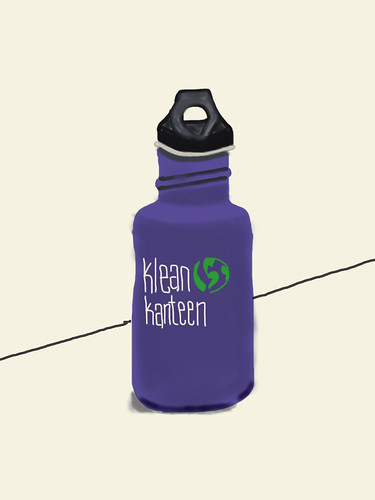
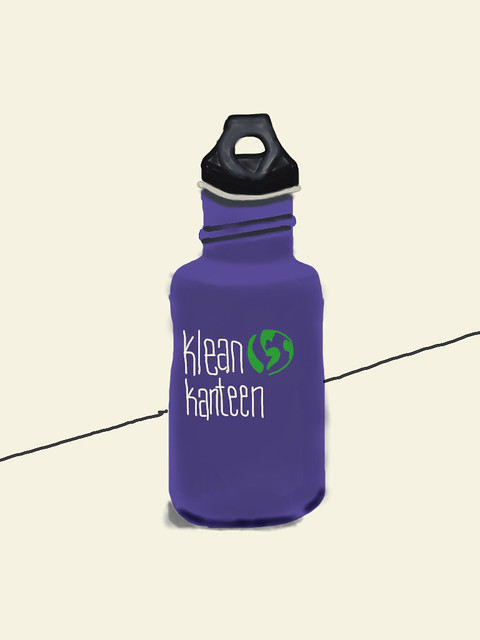
Inspired by Angelica's recent work on her iPad with brushes, I painted this picture of my water bottle last night on my iPad. As I finished I thought to myself, "There is no way I could do this with photoshop." And its true...photoshop, for me, offers far too much complexity when it comes to digital painting and drawing. I'm not saying brushes is a photoshop replacement by any means, but for me it is a superior and far easier painting and drawing program.

I contributed this photo to the Brushes iPad Art photo pool over on flickr. I'm absolutely blown away by the work by this flickr group.

A slideshow of the paintings that flickr community members have been sharing in this group is embedded below.


Wednesday, January 19, 2011

More artwork from Angelica

Another nice painting by Angelica using her iPad. She used the brushes app to create this painting, which is the same app she used for the teddy bear.

Wednesday, January 12, 2011

Painting and Drawing on the iPad


Yet another drawing created by Angelica on her iPad. This time she used the Brushes Software program. I'm convinced that the iPad is a fantastic platform not only for content consumption, but creation as well.

Here is a little brainstorm of the advantages to painting and drawing on an iPad compared to painting and drawing with paints, brushes, paper, etc. Please note that I am not suggesting that the iPad replace the traditional media, but I do believe there are some real benefits to consider.

Advantages of painting and drawing on an iPad:

1. Some apps, like brushes, record the painting and drawing process in the form of a movie. This can be super useful in helping us remember the process...and when we remember the process, we can more easily reflect and achieve new understanding and learning. Click here to see a video recording and reflection of a drawing that I created on the iPad last fall.

2. Artists have access to a nearly unlimited set of painting and drawing tools within a drawing program like Brushes. It probably would be quite expensive to purchase all of these traditional tools for use at home, but at $7.99 in the iTunes store, Brushes gives artists access to a powerful toolset.

3. Artists have the ability to paint and draw anywhere and anytime with their iPad and they don't have to worry about toting bulky, expensive supplies and equipment with them. I could easily see some artists taking iPads into the backcountry for nature paintings and sketches-this is something not easily done with an easel, paint brushes, and a pallet.

4. With an iPad, you spend more time painting and drawing and less time involved in set up and clean up. The best way to actually learn and improve your skills is by actual engagement in the process, and the iPad allows users more time on task.

Again, I'm not saying that the iPad with apps like Brushes can fully replace traditional artistic media, but I do believe it can be a fantastic way to amplify and extend their creative interests and abilities.

Monday, January 10, 2011

e-book lending

An interesting service that aims to capitalize on the new lending feature of the Kindle (announced 12/30/10):

http://www.ebookexchange.com/index.php

According to their website, they hope to change the culture surrounding ebooks. Profits from the exchange can go toward youth literacy programs, though it looks like they are also interested in the possibility of the owner earning some money from lending out the books.

--Rebecca

Tuesday, January 4, 2011

Math that Moves: Schools Embrace the iPad

http://nyti.ms/dVJ8dX

-avery